


Move Accounting Data Without Manual Re-Entry
Import contacts, transactions, inventory, and journals accurately using structured templates.
What Data Import & Migration does
Upload accounting data in bulk using standard templates. The system structures, validates, and applies the data directly to your accounts without manual, line-by-line entry.
What Data Import & Migration Covers
- Import historical and current accounting data using predefined templates
- Import data from previous accounting software, ERP systems, or POS systems
- Eliminate manual, line-by-line data entry
- Validate imported data before it is posted into the system
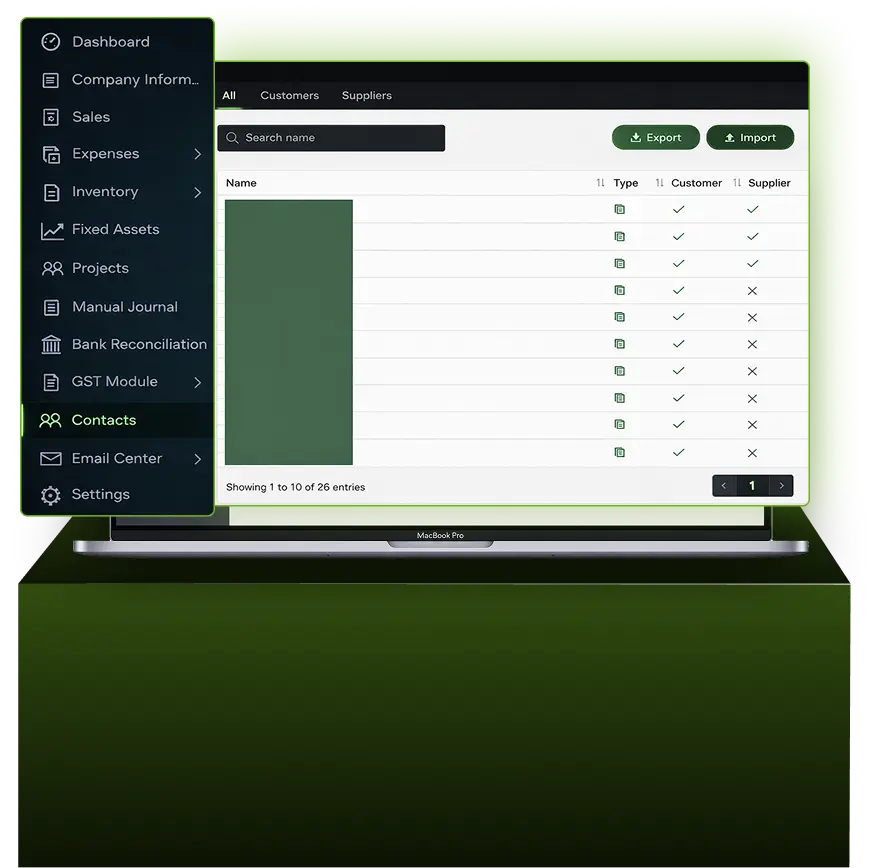
Import Contacts
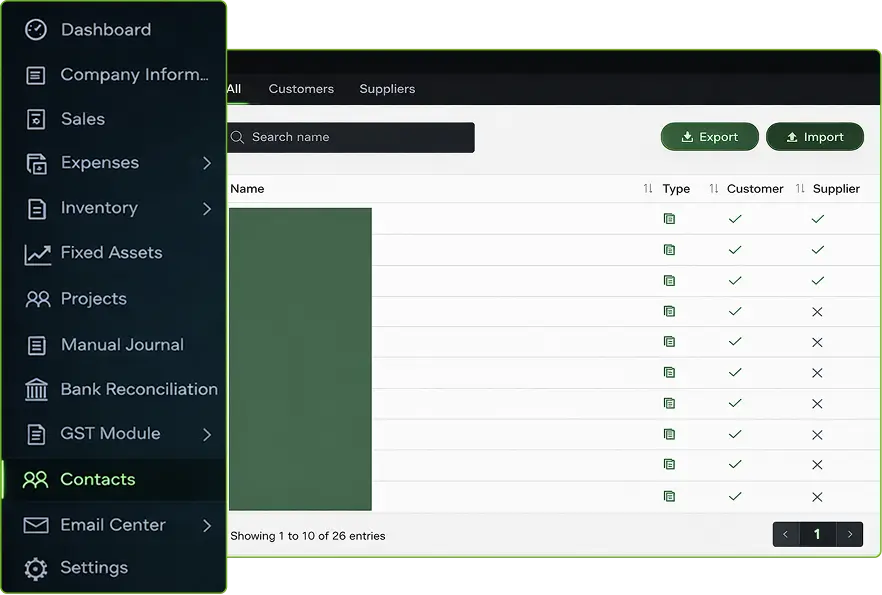
Contacts can be imported and updated using the Contacts Import Template.
You can:
- Download the contact template from the Contacts module
- Upload completed templates to create contacts in bulk
- Export existing contacts, update details in Excel, and re-import to apply changes
All imported or updated contacts are reflected directly in the system.
Import Sales & Expenses
Sales and expense transactions can be imported using dedicated templates.
The system allows you to:
- Import sales invoices, sales receipts, expense bills, and expense payments
- Automatically create customer or supplier contacts if they do not already exist
- Optionally include “for info only” columns for validation checks
- Import remarks for sales transactions (one remark per invoice)
If required fields are missing or invalid, the system highlights issues before completing the import.
Import Foreign Currency Transactions
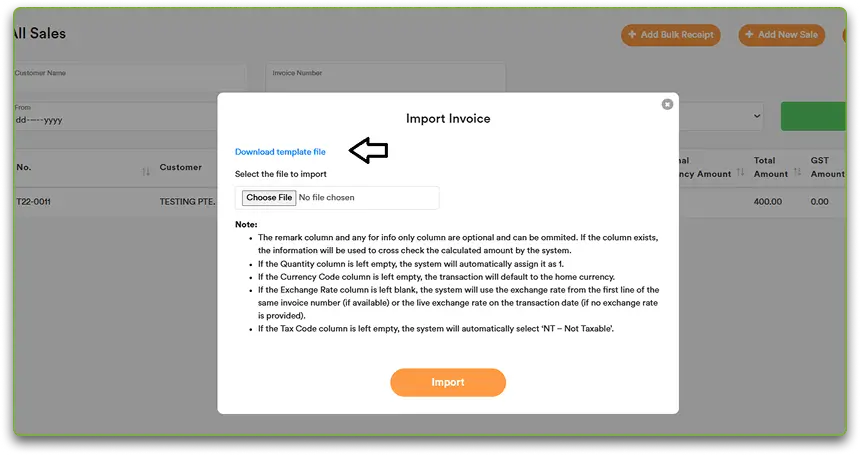
Foreign currency transactions can be imported by specifying the Currency Code in the import template.
The system supports:
- Automatic use of home currency if no currency code is provided
- Automatic exchange rate assignment if the home currency is selected
- Use of exchange rates from the invoice or live rates on the transaction date
When invoices and payments are recorded in foreign currency, exchange gains or losses are calculated and posted automatically.
Import Inventory Data
Inventory data can be imported using inventory-specific templates.
Important inventory handling rules:
- Inventory is processed by batch during import
- Separate item codes should be used for different purchase costs
- Using the same item code for different costs without a chronological entry can affect COGS accuracy
To maintain accurate inventory valuation:
- Use separate item codes for different cost levels, or
- Enter transactions manually in chronological order when using the same item code
Automated Import Workflows
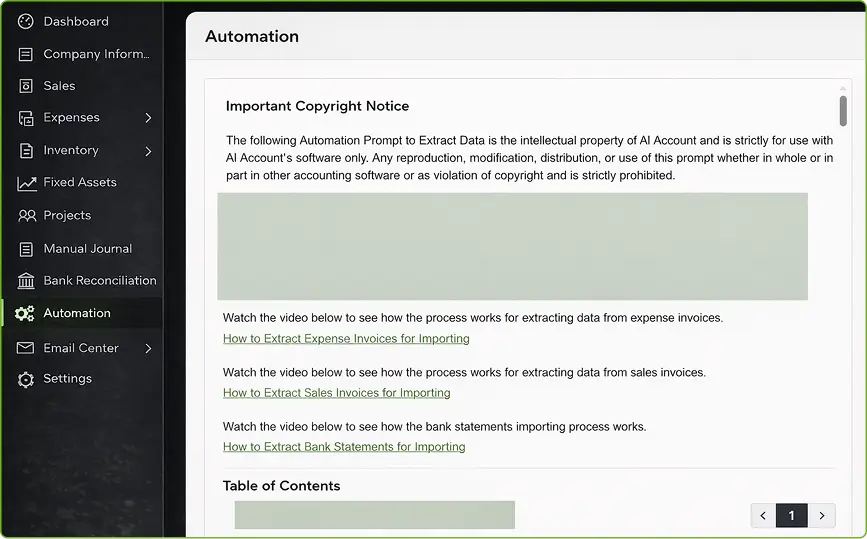
AI Account provides guided automation for data import tasks through the Automation section.
This includes:
- Scanning bank statements for automated bank reconciliation
- Importing opening balances and mapping them to correct ledger accounts
- Extracting sales and expense invoices from PDFs using OCR
- Preparing data for seamless import into the system
Instructional videos are available to demonstrate each automated workflow step by step.

Understand How Imported Data Flows Through the System
Imported data is structured, validated, and reflected directly in the accounting workflow.

Stress-Free Data Migration Starts Here
Move your accounting data accurately without manual re-entry or setup stress.
Frequently Asked Questions
What data can be imported into AI Account?
Contacts, sales invoices, sales receipts, expense bills, expense payments, inventory records, fixed assets, and manual journals.
Can I import data from my previous accounting system?
Yes. Import templates are designed to migrate data from accounting, ERP, or POS software.
What happens if contacts do not exist during import?
Customer or supplier contacts are created automatically based on the imported data.
How are foreign currency transactions handled?
Currency codes and exchange rates can be included, and exchange gains or losses are calculated automatically.
Is inventory valuation handled during import?
Yes, but inventory imports follow batch logic. Separate item codes or a chronological entry is required to maintain accurate COGS.